Agent Portal
BizDynamics allows an Agent to create quotes for multiple Lines of Business in a single quote transaction. This capability helps the Agent reduce the repetitive data entry while creating quotes for different LOBs.
Note: An Agent can proceed only with Quote flow.
Upon successful login, the dashboard appears.
You can view the list of 10 latest quotes (both mono-line and multi-line transactions) that you created or are assigned to you by other users.
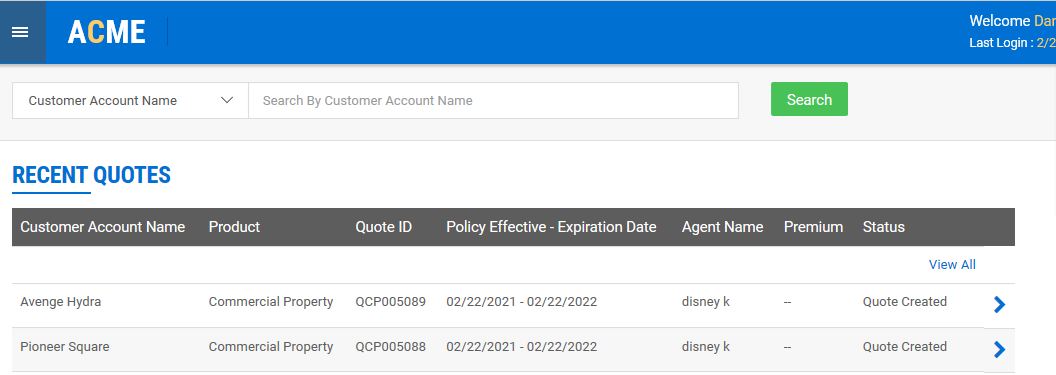
You can proceed to the existing quote or create new version of the quote or copy quote through the icon  displayed at each record.
For other dashboard features, refer the following links.
Search
You can search for a customer account or quote by selecting Customer Account Name or Quote ID from Search dropdown and providing the relevant keyword in the Search field.
The application fetches the customer’s records matching with the keyword provided.
For more details to retrieve information by applying additional filters, click here.
New Quote
You can create quotes (for different products) within a Submission.
For more details on creating a quote, click here.
Service Policy
You can initiate post new business transactions like renewal and endorsement.
For more details on processing post new business transactions, click here.
Quick Links
You can view and navigate through the applications that are assigned to you.
Note: You can configure the apps to be visible or hidden on Quick Links through Apps & Messages at Settings.
Notification
An agent gets various updates with the help of a notification icon  .
.
For more details on Notification, click here.
Settings
You can manage your profile and preferences through Settings  .
.
For more details on Settings, click here.
Customer Accounts
You can view the account information of a customer through Customer Accounts from the menu on the left pane.
For more details on Customer Accounts, click here.
Quotes
The list of quotes that you created will be displayed from where you can choose to proceed further processing of any quote or create new version or copy quote through the proceed icon displayed against each record.
For more details on Quotes, click here.
Policies
The list of Policies that are in force will be displayed from where you can process post new business transactions such as renewal and endorsement.
For more details on Policies, click here.
Claims
You can search for a claim by providing the Claim Number, or Policy Number, or FNOL Number, Customer Account Name, or Date of Loss in the search field.
The results for the claim will be displayed along with its Line of Business, Policy Number, Date of Loss, and Status.
For more details on Claims, click here.
Reports
Here, you can generate Summary Report where you can view quotes’ status and Conversion Report to view the percentage of quotes that are converted to policies in the form of Pie chart.
For more details on Reports, click here.